 peekpanda
Open a case file
Every panel on an app's page, what it holds, and how to move between them.
Download Markdown ↓A case file is one app's page. It lives at /apps/ios/<store id>, where the store id is the app's public App Store identifier. Search results, chart rows, rival lists and category shelves all lead here.
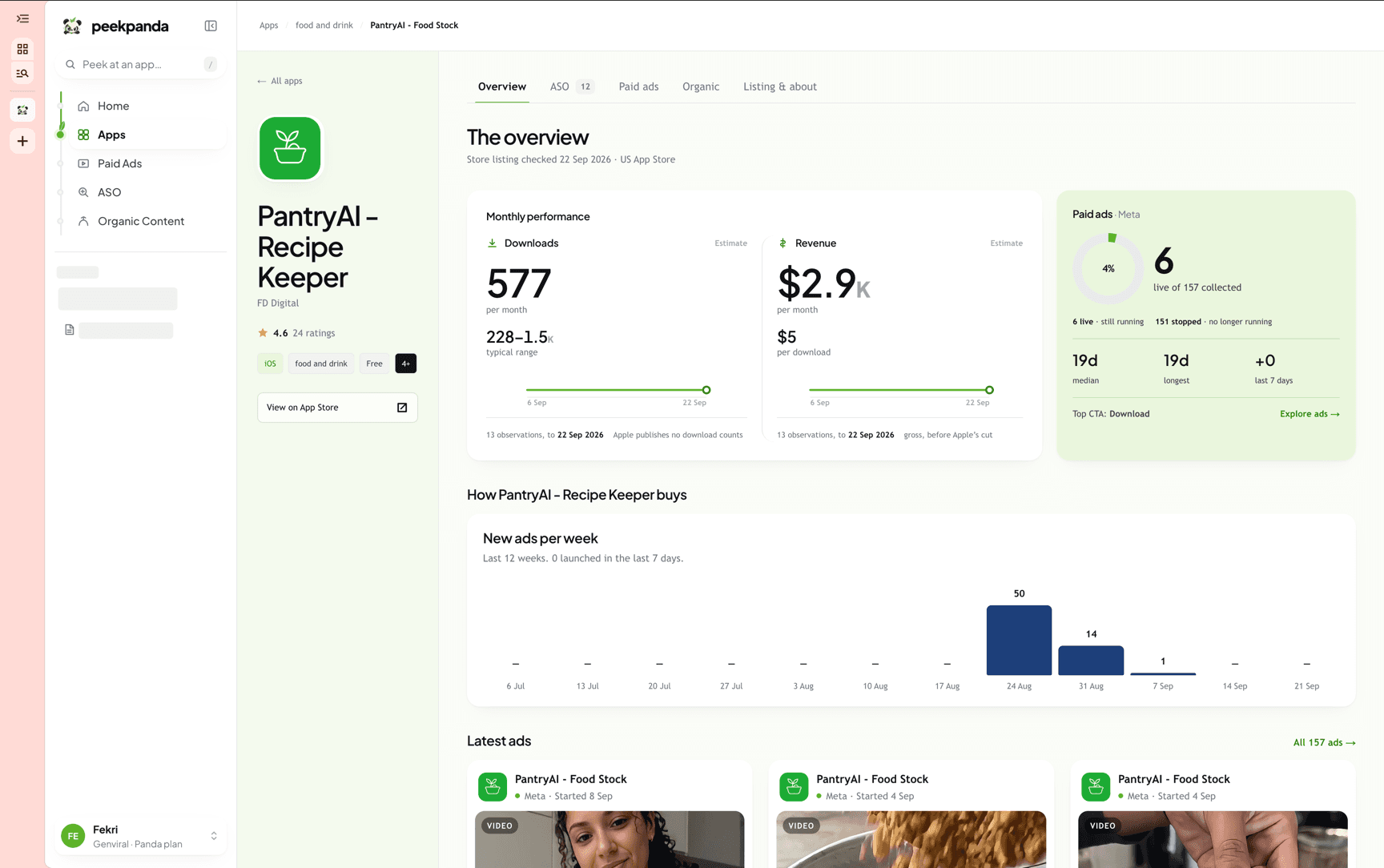 A case file on Overview: the identity block, monthly estimates, and the latest collected ads.
The page is an identity block and five tabs. Everything below the identity block is evidence. The overview comes from one read of the case file, and every other tab reads its own evidence, so one empty panel never blanks the rest.
The identity block
At the top: the app icon, a Case file · iOS tag, the app name and developer.
Under the name, the star rating and rating count with the words Store lookup and the date those numbers were read. Then a row of chips, each one a store fact:
- Platform and category
- Price
- Age rating, when the store publishes one
- Released and Updated dates
- The best chart rank observed for the app, with the storefront and day it was seen
On the right, View listing opens the app on the App Store in a new tab.
Above the identity block, breadcrumbs run Apps / Category / App name. The category crumb takes you to the public chart for that shelf.
Moving between tabs
The tab strip sits under the identity block: Overview, ASO, Paid ads, Organic, Listing & about. The active tab carries a green underline.
Some tabs carry a small badge. ASO shows how many collected searches this app appears in. Organic shows how many suggested matches were found, with a + when the match scan reached its limit.
The overview renders from the case file alone. Every other panel loads when you open its tab, so evidence you never open is never read. While a panel loads, a placeholder holds its place.
Each tab has its own address, named by the tab query parameter: ?tab=aso, ?tab=paid, ?tab=organic or ?tab=listing. The overview is the default and needs no parameter. A link with one of these opens the page on that tab. Switching tabs keeps the rest of the address, such as the chart country and type, and Back and Forward step through the tabs you opened.
Tiles and previews inside the page link to the tab that holds the full evidence. Those links also carry a #tab-<id> fragment, which scrolls the tab strip into view.
Overview
Latest evidence
The lead panel. Downloads is the headline figure, with a timeline underneath when more than one observation exists. Beside it: Revenue, Store ratings, and Chart rank.
Each estimate shows the latest supported value and how it moved since the previous valid observation. Each point is a 30-day estimate, not a calendar-month total. When newer evidence cannot support a new estimate, the last valid value remains with its original date.
Downloads and revenue are estimates. See Revenue and download estimates.
The Chart rank card shows the latest observed rank, its movement, a sparkline of the collected days, and how many days have been observed. If the app has never been seen on the selected chart, it says "No chart history collected" rather than showing a zero.
The chart behind that card defaults to your app's likely home: the paid chart if the store price is above zero, the free chart otherwise, in the United States, Overall. Arriving from a leaderboard carries that board's country, shelf and chart type through, so the rank you clicked is the rank you see.
This month vs last
Two counters, New ads and New organic, comparing what was collected this month against last month, with the date the count was taken as of. Undated items are counted separately rather than assumed into a month.
Keywords
A rail listing the searches this app ranks for, best position first, each with a position pill. The heading beside it says how many of the collected queries matched, and how many of those are on page one.
If nothing has been collected, the rail says so and offers Request data to begin building relevant public keyword evidence.
Screenshots, Paid ads, Organic posts
Three horizontal strips of stored media, in that order. Screenshots come from the store listing. Paid ads and organic posts are the same evidence the dedicated tabs hold, in preview form. Each strip's heading states how many items are stored and how many are new this month.
Paid ads
Stored ad observations linked to this app's exact App Store identity, not matched by name. Each card carries the creative, its platform, its status, the date it was observed, and a link to the source where one is stored.
If nothing has been stored, the panel says the panda has not stored a paid creative for this store identity. It does not imply the app runs no ads.
Organic
Suggested organic posts, matched against a copied public corpus by product name. Every card is badged Suggested match and shows the evidence for the match plus its source snapshot and copy dates.
A name match does not prove the app owns the publishing account. If the candidate scan reached its configured limit, the panel says so, because more matches may exist beyond what is shown.
ASO
The search picture is a keyword table built from collected public searches that contain this listing. Each row shows the query, the observation date, the observed position with how far it moved since the run before, its popularity, difficulty and opportunity, and a preview that opens the full list of apps in ranking for that search.
Positions here are where the app appeared in collected public search results. They are not native App Store ranks, and they are not every keyword the app ranks for.
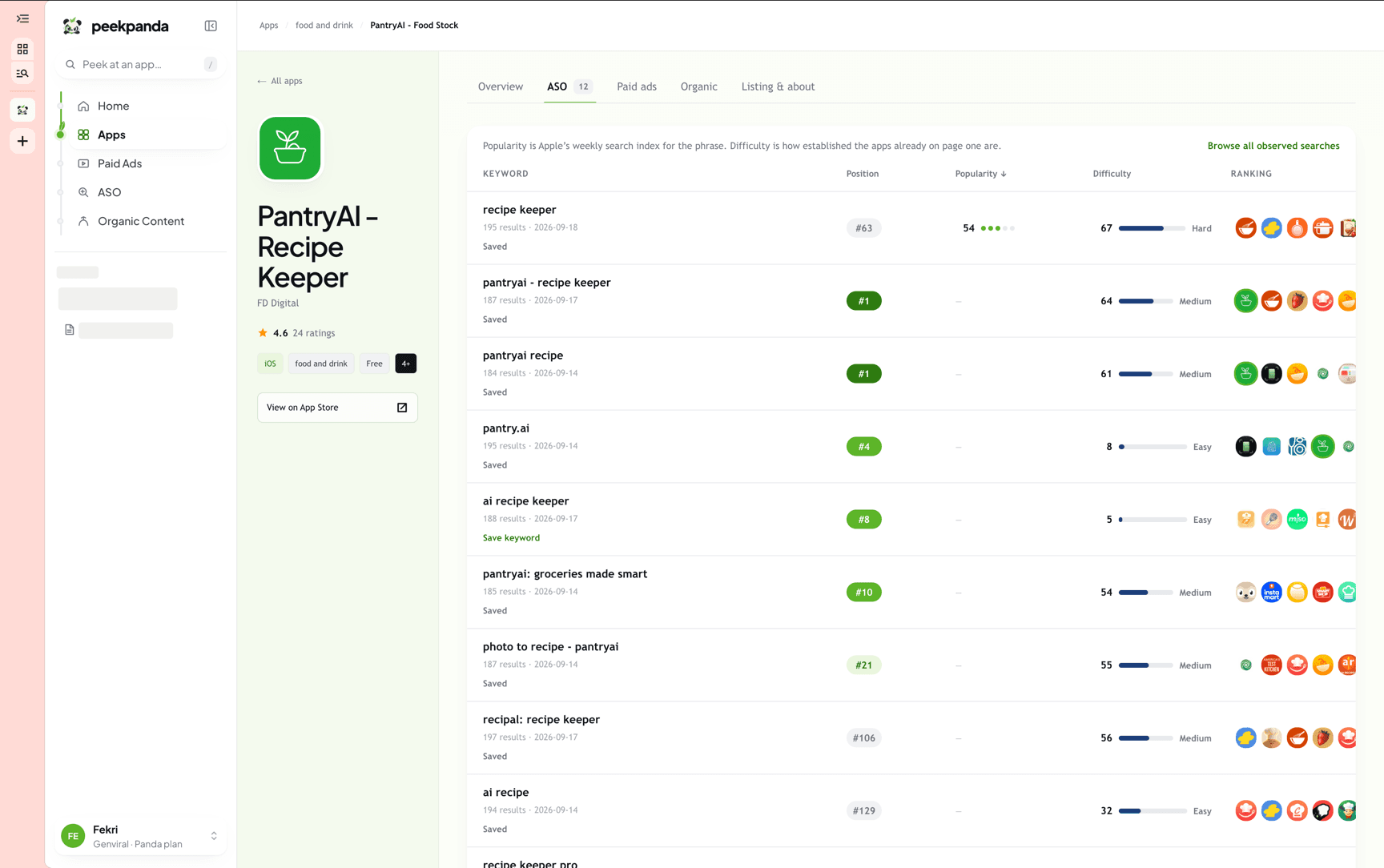 The ASO tab of a case file, listing collected searches and the observed position in each.
Listing & about
The store description as published.
Then Monetization: download price, whether the listing declares in-app purchases, whether it declares ads, and an installs figure labelled Installs and marked Estimate. It is a PeekPanda estimate, not measured installs.
Below that, the stored screenshots and the store observation behind them.
When a panel cannot load
If the case file itself cannot be read, the page shows a single "Not loaded" state with the reason. Individual panels behave the same way: a panel that could not be read says so, rather than rendering an empty result that looks like a real zero.
Related
AI agent or LLM? Read this page as markdown