 peekpanda
Catalogue and search
Find iOS apps in the PeekPanda catalogue and understand the results you are viewing.
Download Markdown ↓Press ⌘K (or Ctrl+K) anywhere in PeekPanda to search the iOS catalogue. Choose an app to open its case file.
The catalogue is iOS only. Each row represents an App Store listing, not a cross-platform product record.
Search from anywhere
Open search with the keyboard shortcut, the Search control in the Apps view, or the field on the catalogue page. Type an app name, use the arrow keys to move through matches, press Enter to open the selected app, and press Esc to close search.
Search prioritizes app-name matches. The result row shows the available public listing context, such as the app name, icon, developer, rating, and category.
No match means PeekPanda does not currently hold a matching listing. It does not mean the app does not exist. You can use Request an app to add a specific App Store listing for investigation.
The catalogue table
The catalogue view lists stored app observations and lets you narrow them by app name or category. Its URL keeps the active filters, making a filtered view easy to share.
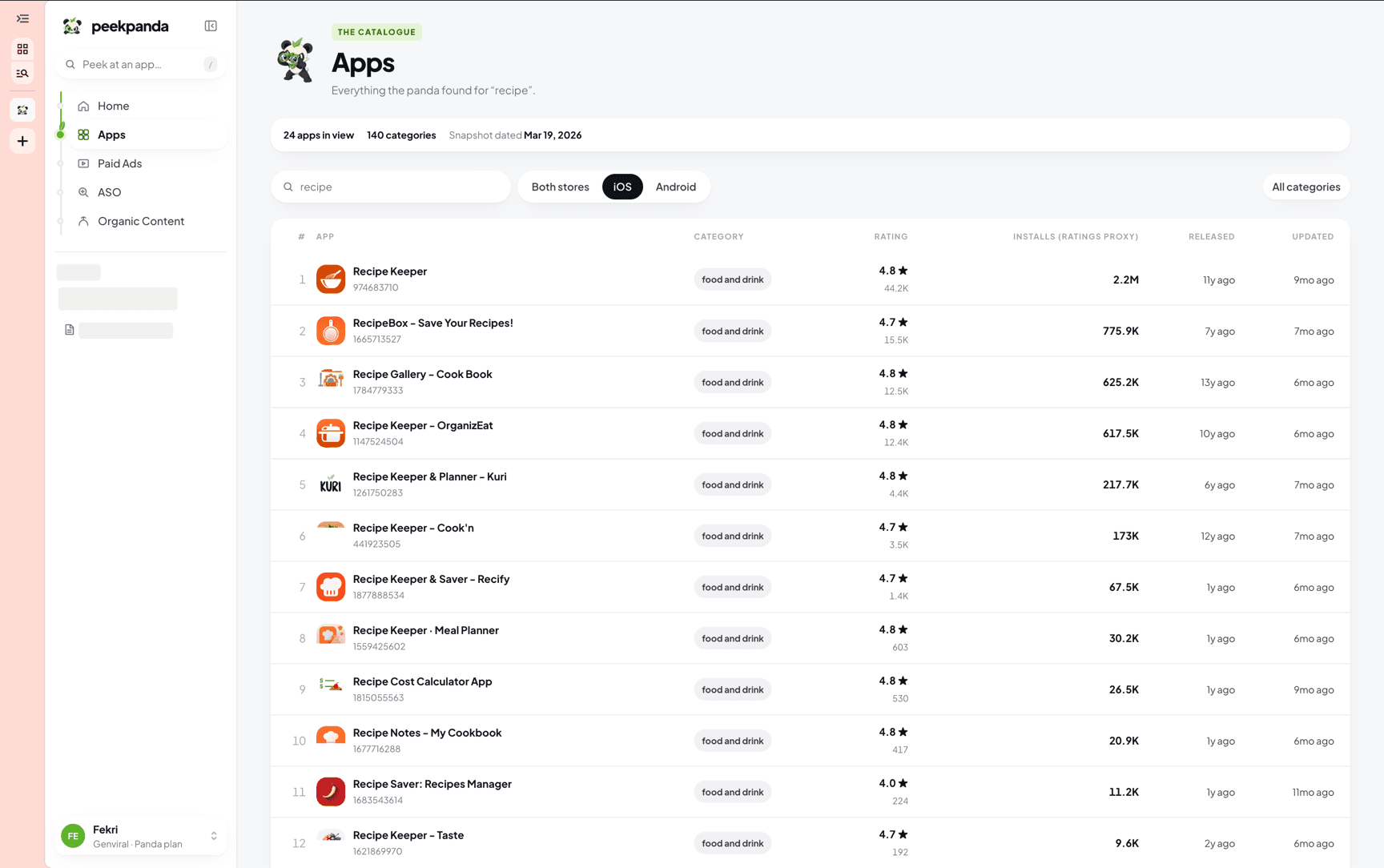 Catalogue search for “recipe”, limited to iOS.
| Column | What it holds |
|---|---|
| # | Position in the current list, not a chart rank. |
| App | The app’s icon, name, and available developer information. |
| Category | The public App Store category. |
| Rating | Observed public star rating and rating count. |
| Installs | A PeekPanda download estimate, when available. |
| Released | The listing’s public release date. |
| Updated | When PeekPanda last recorded the listing information. |
Installs is an estimate, not a measured download count. A dash means PeekPanda does not have enough usable evidence to show the value. See how estimates are computed.
Freshness
Opening the catalogue reads stored observations rather than waiting on an App Store request. If supporting listing information is missing or needs updating, PeekPanda may collect it in the background and update the page when it becomes available. The current observation date always remains visible.
Related
AI agent or LLM? Read this page as markdown